Countdown
The Countdown widget displays a live, second-by-second countdown to a target date and time. When the countdown reaches zero, a configurable message appears with a subtle pulse animation to mark the moment.
Add the widget to your dashboard
- Open the Homey app and go to Dashboards.
- Enter Edit Mode and select Add Widget.
- Choose Apps and select DataVista.
- Pick the Countdown widget.
- Click the preview to add it to your dashboard.
Configure the widget
| Setting | Description |
|---|---|
| Datasource | Select a DataVista countdown value set by the flow card below. |
| Style | Choose from nine visual styles: Minimal, Blocks, Flip clock, Particles, Hourglass, Rings, Racecar, Racehorse, or Speedboat. |
| Color | Choose the primary accent color for the countdown display. Defaults to Contrast (follows your Homey theme). |
| Completion message | Text shown when the countdown reaches zero. Overrides any message set in the flow card. |
| Show name | Toggle whether the countdown's name is shown on the widget. |
| Overwrite name | Enter a custom name to display on the widget, overriding the name set in the flow card. |
| Show seconds | Toggle the seconds unit on or off. |
To use a countdown datasource, create a flow using one of the DataVista countdown action cards and run it at least once. The countdown identifier only becomes selectable in the widget settings after the flow has run. See Flow Cards for all available options.
Styles
| Style | Description |
|---|---|
| Minimal | Clean text layout with days, hours, minutes, and seconds separated by colons. Uses your Homey theme colors. |
| Blocks | Each time unit sits inside its own rounded card block for a structured, tile-based look. |
| Flip clock | Vintage split-flap train station board. Dark cards with cream digits and a horizontal seam; the card flips on each tick. |
| Particles | Animated particle field behind the countdown. Particles start slow and gradually drift faster as the countdown progresses — reaching peak speed at zero. Color saturation also rises with urgency. On completion, the particles slow and fade to gold. |
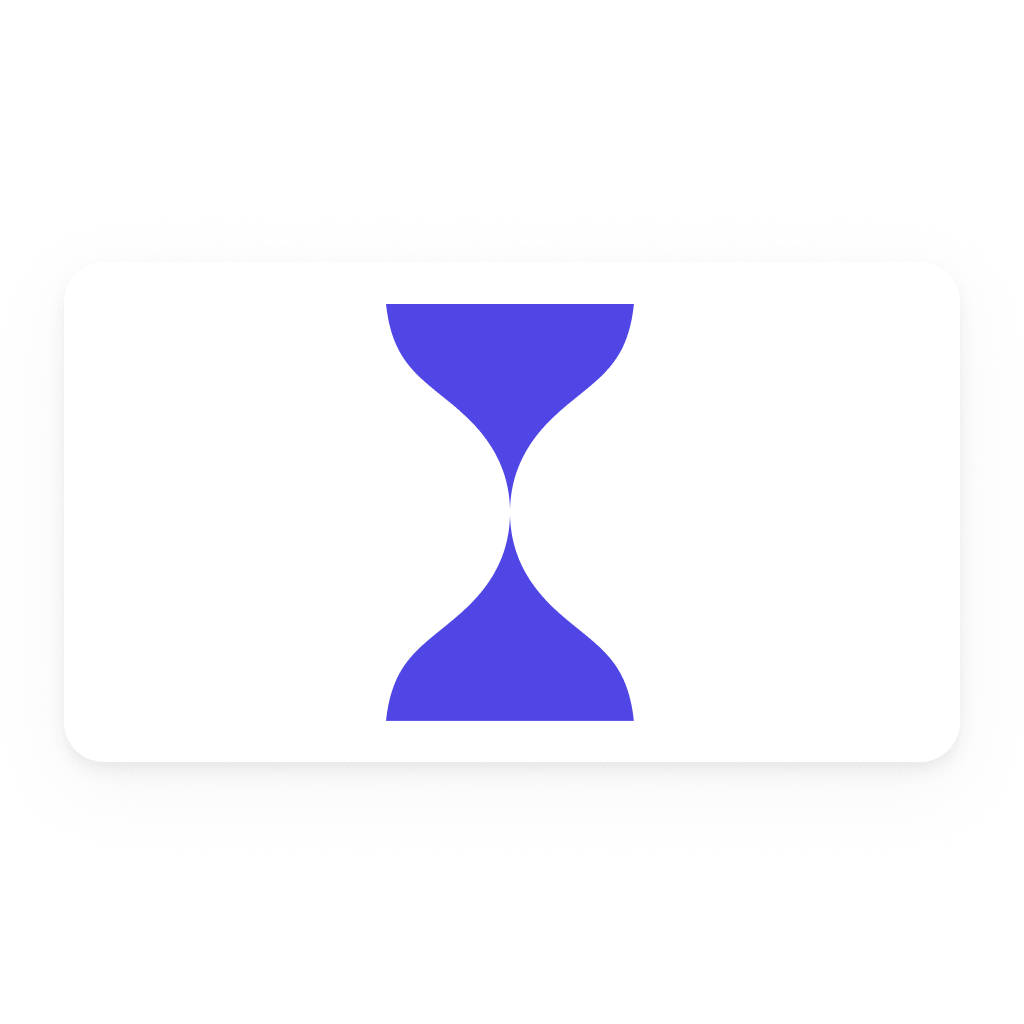
| Hourglass | A classic sand-timer visual. Sand drains from the top bulb to the bottom as time elapses, with a tiny remaining-time readout below. |
| Rings | Each unit (days, hours, minutes, seconds) sits inside its own circular progress ring that drains as the unit ticks down — accent-colored on a subtle track. |
| Racecar | An accent-colored racecar speeds along a racetrack toward a checkered finish line — its position reflects the elapsed share of the countdown. On completion, the car parks at the finish, a checkered flag waves above it, and confetti bursts around the line. |
| Racehorse | A galloping racehorse with a jockey thunders along a dirt track toward the white winning post — its position reflects the elapsed share of the countdown. The jockey's silks use your accent color while the horse keeps its natural brown coat. On completion, the horse halts at the post, a gold trophy fades in beside it, and confetti bursts around the finish. |
| Speedboat | A speedboat races across open water toward a dock — its position reflects the elapsed share of the countdown. On completion, the boat reaches the dock, a flag waves above it, and confetti bursts around the finish. |
FAQ
Why does the widget show "Configure me"?
No datasource is configured, or the selected datasource does not exist yet. Create a flow with one of the countdown action cards, run it once, then select the identifier in the widget settings.
Which timezone does the countdown use?
The stored target is always a plain local datetime (no timezone offset). For the Set countdown and Set countdown (duration) cards the target is stored exactly as entered or calculated. For the Set countdown (ISO 8601) card, values that include a timezone offset or Z suffix are converted to Homey's local timezone before storing; values without a suffix are stored as-is. In all cases the countdown is calculated against your browser's local clock, so the result matches the timezone of the device you're viewing the dashboard on.
Can I update the target date without removing the widget?
Yes. Re-run the flow card with the same identifier but a new date. The widget picks up the change in real time without needing to be reconfigured.
What happens when the countdown reaches zero?
The time units are hidden and the completion message fades in with a gentle pulse animation. If you set a Completion message in the widget settings it takes priority; otherwise the message from the flow card is used, falling back to "Time's up!" if neither is set.
Can I trigger a flow when the countdown reaches zero?
No. The Countdown widget is visualization only — it has no ability to fire a flow or send a notification when it hits zero. The completion state is handled entirely in the widget display (the time units hide and the completion message fades in).
If you need to trigger something at the deadline, schedule a separate flow using a date/time-based trigger set to the same target date and time as your countdown.
Why do the Particles speed up even when I open the dashboard mid-way through?
The widget stores the moment the countdown was set alongside the target date. This lets it calculate the correct position in the countdown regardless of when the dashboard was opened — so particles always reflect how far along the countdown truly is, not just how long the widget has been visible.
Countdowns set before this feature was introduced do not have a stored start time. For those, the widget falls back to a simple ramp: particles start speeding up during the last five minutes of remaining time.
Does updating the message or name reset the particle speed?
No. The start timestamp is only written when the target date or duration changes. Updating only the message or name in the flow card leaves the urgency progression unchanged.