Status Badge
The Status Badge widget displays compact status updates with optional pulsing animations. Choose between Badge, Bullet, or Named bullet styles and customize colors to match your dashboard.
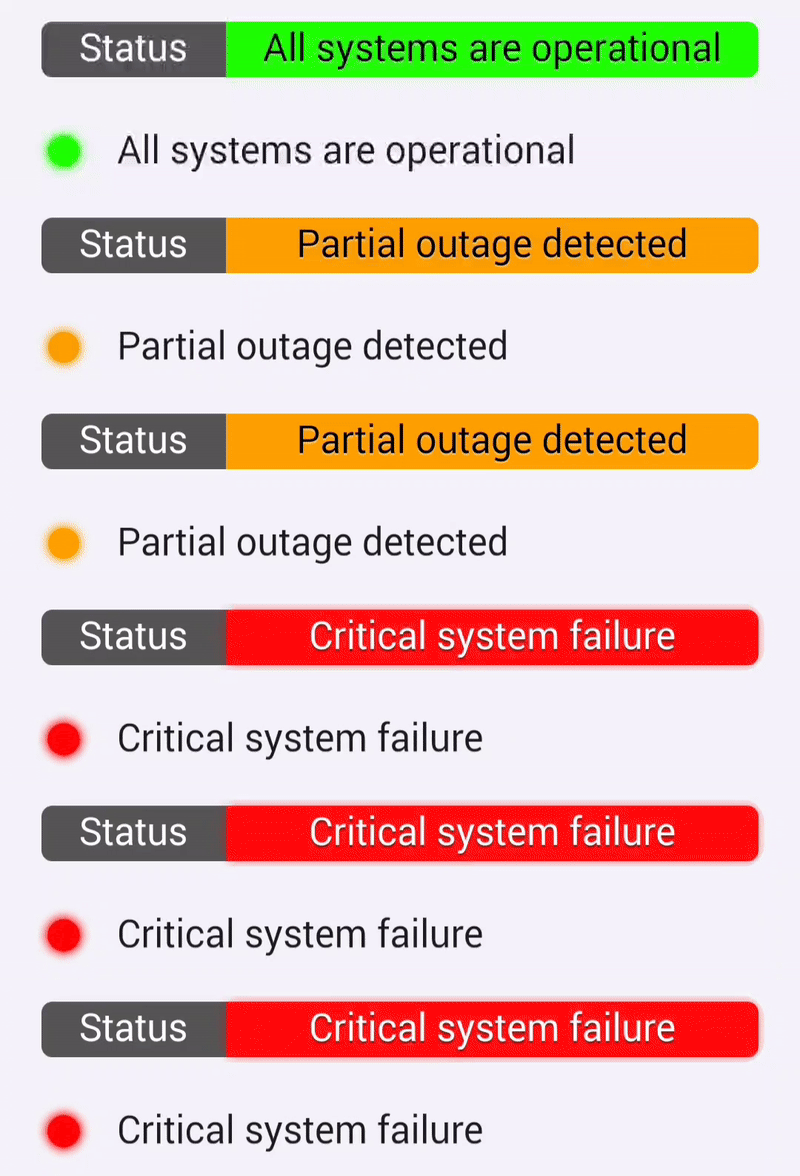
Drive the widget with boolean capabilities, Homey variables, or DataVista action cards. The Boolean action card toggles the status, while the Status action card exposes advanced options such as color overrides and attention-grabbing effects.
Add the widget to your dashboard
- Open the Homey app and go to Dashboards.
- Enter Edit Mode and select Add Widget.
- Choose Apps and select DataVista.
- Pick the Status badge widget.
- Click the preview to add it to your dashboard.

Configure the widget
| Setting | Description |
|---|---|
| Datasource | Select a DataVista value*, device capability, or Homey boolean variable. |
| Refresh interval | Polling frequency when using device capabilities or boolean variables. |
| Style | Choose Badge, Bullet, or Named bullet. |
| Overwrite name | Replace the default name (default is Status). When using Badge, the name appears to the left. |
| Width of name | Set a fixed width to align multiple badges vertically. |
| True text | Text shown when the datasource is true. |
| False text | Text shown when the datasource is false. |
| Color if true | Color used when the datasource is true. |
| Color if false | Color used when the datasource is false. |
warning
To use a DataVista value, run the DataVista Status action card at least once so the value appears in the widget settings.
DataVista
[Status] Set status identifier to color with text text (attract attention: attract attention)
i
Set a status that can be used in DataVista widgets.
FAQ
Why does the badge show "Configure me"?
The datasource is missing or unavailable. Reconfigure the datasource setting and select a valid source.
How do I enable the pulsing animation?
Use the DataVista Status action card and set Attract attention to Yes.